Software engineering
How to Create an Email Alert System with Google Apps Script
Alex de Pablos Lopez8 min
Today, I want to share with you an ingenious technical solution I’ve developed: a (opens in a new tab)n email alert system using Google App Script (opens in a new tab). This system will allow you to monitor your mailbox efficiently and effectively, acting as an email alert system that will activate when you determine it should.
An email alert system is nothing more than a tool that allows you to stay on top of important emails to do with them what is considered.
It arose as a solution to a problem I found in one of my personal projects. As we all know, even when we are experimenting and learning in our own projects… there are always challenges to overcome!
The Scenario: A Challenge with Microservice Notifications and the Need for an Email Alert System
It all started with a process I had designed, which performed a series of operations and relied on a notification microservice that I had created myself. This microservice worked as an email alert system, sending an email to inform if the process had successfully completed or if it had encountered any problems.
However, during an update of the notification service, a change was introduced that affected the consumers of this service. From that moment, the process stopped sending the notification email, leaving us without visibility over its status.
This is where the need for a solution arose that would allow us to know whether the notification email was being sent or not, regardless of the reason for the error. And this is also where the solution of using Google App Script as an email alert system comes into play.
Of course, we could have resorted to the process log records to find out what had happened. But that was not the idea. We wanted a system that would alert us when something went wrong, not having to dive into a sea of records every day.
Act II: Facing the Problem and the Need for an Email Alert System
The challenge was clear: we needed a way to alert when the process or the notification service failed. But how to do it if the notification service itself was the one having problems? A common solution in these cases is to implement a retry policy. If the notification service fails to try to send an email, it bravely tries again after a short break. This usually solves temporary connectivity errors, but what happens if the service continues to fail and all attempts are exhausted? We needed a more robust solution, one that would alert us if the email was not being sent for any reason.
That’s when Google App Script made its grand entrance, offering a good solution for our email alert system.
The Solution: Google App Script as an Email Alert System
Google App Script (opens in a new tab) is a JavaScript-based platform that allows us to automate, enhance, and connect different Google services, such as Gmail, Google Sheets, and Google Drive, among others. In this case, I used it to monitor my inbox, looking for an email with a certain subject and thus functioning as an email alert system.
The script is set to run at a specific time every day and if the notification email has not arrived by that time, it sends an alert to inform of the situation.
Code of the Script and Detailed Explanation
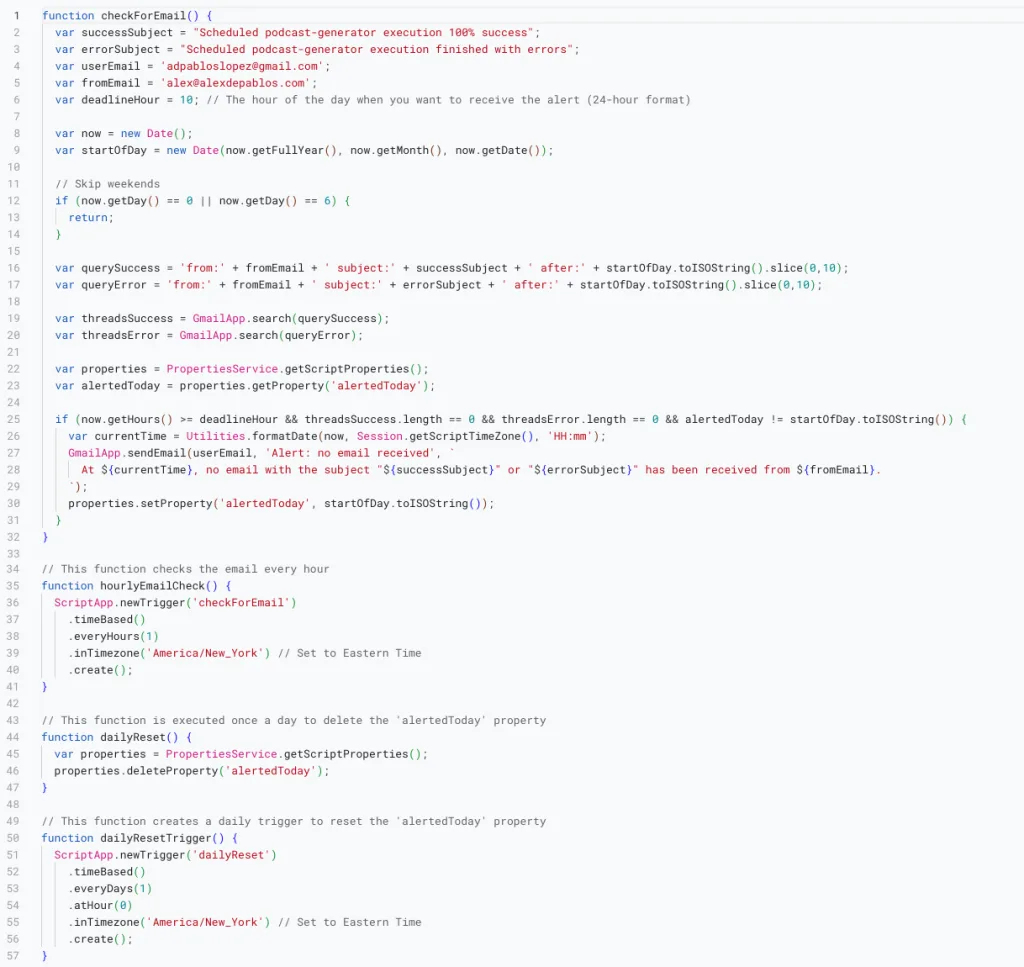
If you prefer to work directly with the code, I have created a repository on GitLab where you can find all the code for this email alert system. You can view the code, copy and paste it where you need, or even clone the entire repository if you prefer.
The repository includes the EmailAlerts.gs file with the Google App Script code, as well as detailed instructions in the README file on how to set up and use the alert system.
You can find the repository here: Email Alert System with Google App Script (opens in a new tab)
Remember, if you have any questions or encounter any problems, don’t hesitate to open an issue in the GitLab repository. I’m here to help you.
Let’s go with the explanation of the script code!
- Function checkForEmail(): This is the main function that checks if an email with a specific subject has been received.
- The first lines define the variables that will be used in the function, including the subjects of the emails being searched for, the user’s email address, the sender’s email address, and the time when the alert is desired.
- Then, a Date object is created for the current date and time and another for the start of the current day.
- The next section of the code skips weekends, as alerts are not desired on those days.
- Next, the queries that will be used to search for the emails in the user’s inbox are defined.
- The search for the emails is performed and it is checked if an alert has been sent that day. If no email has been received and no alert has been sent, an email is sent to the user informing them of the situation and the alert is logged.
- Function hourlyEmailCheck(): This function creates a trigger that runs the checkForEmail() function every hour. The trigger is set to use the New York timezone, but you can use whichever one you need
- Function dailyReset(): This function runs once a day to delete the ‘alertedToday’ property. This allows for a new alert to be sent the next day if necessary.
- Function dailyResetTrigger(): This function creates a trigger that runs the dailyReset() function once a day at 0 hours. The trigger is set to use the New York timezone, but again, you can use whichever one you need.
For the process to be 100% automated, you would have to run the functions hourlyEmailCheck() and dailyResetTrigger() once. This will create the triggers that run the checkForEmail() and dailyReset() functions automatically, and with that done, you should not have to worry about anything else.


If at any point you decided that you no longer need the alerts, you can go to the Triggers page of your Google Script App and delete the corresponding triggers.
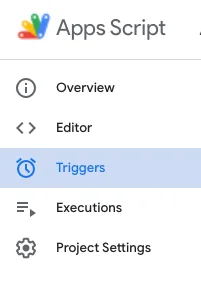
This will stop the automatic execution of the functions and, therefore, the sending of the alerts.
Creating a new Google Apps Script
You might be wondering how you can create your own script in Google Apps Script. If so, I hope the following steps clear up any doubts!
- Access Google Apps Script: First, you need to access Google Apps Script. You can do this by visiting the following link: https://script.google.com/ (opens in a new tab). Make sure you are logged into your Google account.
- Create a new project: Once you are in Google Apps Script, you will see a button that says “New project” in the top left of the screen. Click on it to create a new script project.
- Name the project: SA new tab will open with a blank code editor. In the top left, you will see a title that says “Untitled project”. Click on it to give your project a name. You could call it “Email Alert System”, or any other name you prefer.
- Write or paste the code: Now you can start writing your code in the editor. If you already have the code prepared (like the one I left you above in this same article), you can simply copy it and paste it into the editor.
- Save the project: Once you have finished writing or pasting your code, don’t forget to save your project. You can do this by selecting “File” in the menu bar and then “Save”. Give your project a name and click “OK”.
- Run the functions: For the email alert system to start working, you need to run the functions hourlyEmailCheck() and dailyResetTrigger(). To do this, select the function you want to run from the dropdown menu at the top of the editor and then click on the play icon (a triangle pointing to the right).
- Permissions: Google Apps Script will ask for permission to run the script and access your email. Make sure to grant the necessary permissions for the script to work properly.
And that’s it. You now have an email alert system up and running.
When the script execution evaluates that it should alert, you will receive a notification like this:

Remember, you can stop the alerts at any time simply by going to the Triggers page of your Google Script App and deleting the corresponding triggers.
Conclusion: Using Google App Script as an Email Alert System
As you can see, implementing a solution like this, monitoring and email alerts using Google App Script can be a great ally when working with microservices and distributed systems.
It can be a good solution for certain cases, especially if you are already using Google services in your processes, and if you don’t want to get too tangled up.
It’s true that there are more professional tools and methods to carry this out. But this solution is a viable option, simple and, most importantly, it works!
Don’t forget that, at the end of the day, the goal is to ensure the continuity and efficiency of our processes. Any tool that helps us reach that goal is welcome.
Remember, learning is a journey, not a destination. So keep exploring, keep asking, keep learning. And while you do, don’t forget to enjoy the journey. See you in the next post, where we will continue to unravel the mysteries of Software Engineering together. I hope you found the article useful.